FinanceFree
Monthly Budget Tracker
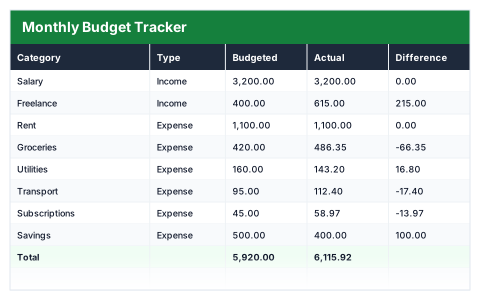
Planned against actual by category, with income and expenses split automatically.
- 15 rows
- 14 live formulas
- 8 KB
Template Library
Every file here opens with the formulas live and a few sample rows to type over. Nothing is a picture of a spreadsheet — the totals, variances and summaries recalculate the moment you change a number.
The 8 free ones cost nothing and need an account, which is where they stay — yours to download again at the current version, to edit, rebrand and use commercially. No watermark.
74
Templates
2,786
Live formulas
7
Categories
8
Free downloads
74 templates shown
Planned against actual by category, with income and expenses split automatically.
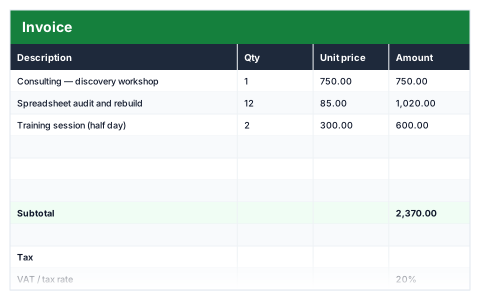
Line items price themselves, with subtotal, tax at your rate and total due.
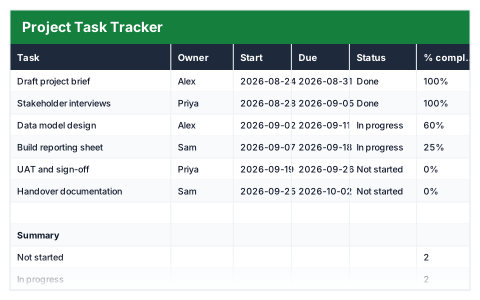
Tasks with owners and dates, plus a live count of what is done and overdue.
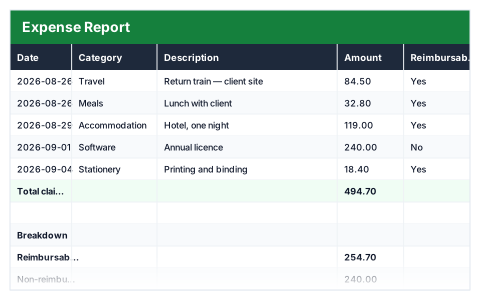
Claimable and non-claimable split out automatically, with a category breakdown.
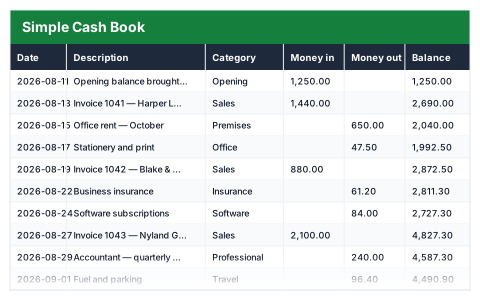
Money in, money out, and a balance that runs down every row so you always know where you stand.
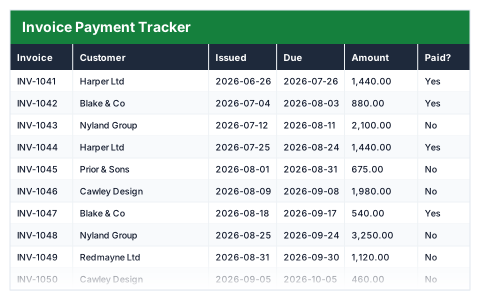
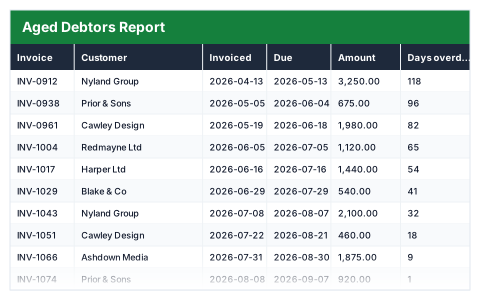
Every invoice you have raised, what is still unpaid, and how many days late each one is.
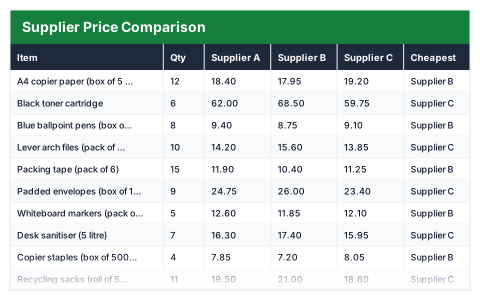
Three quotes side by side, the cheapest picked per line, and what buying the best of each saves you.
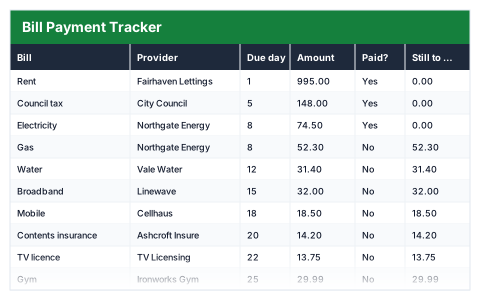
Every household bill with its due day, what is still to pay this month, and what the year costs.
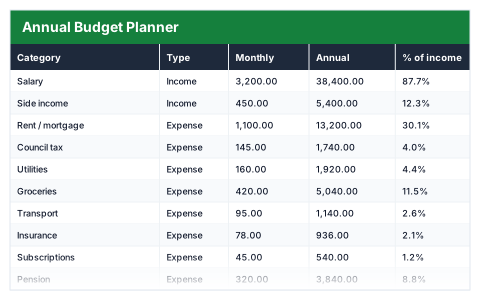
Monthly figures roll into annual totals, with each category shown as a share of income.
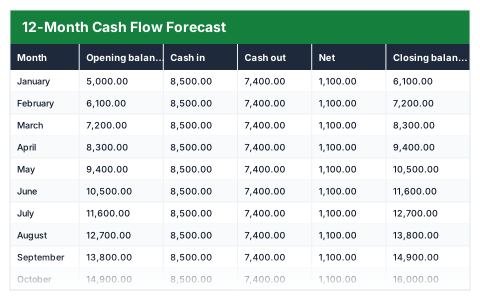
Opening balance carries forward all year; flags your lowest point and any deficit months.
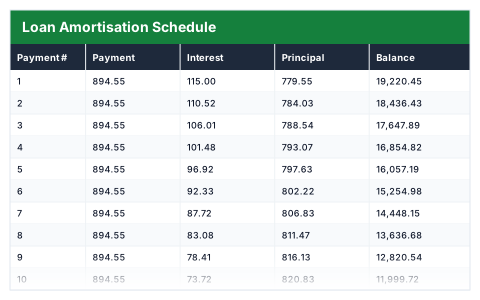
PMT-driven schedule — change the amount, rate or term and all payments redo themselves.
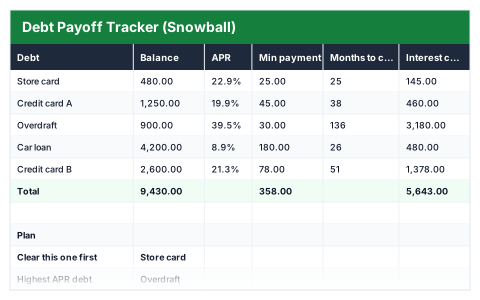
Snowball ordering with months-to-clear and the true interest cost of paying minimums.
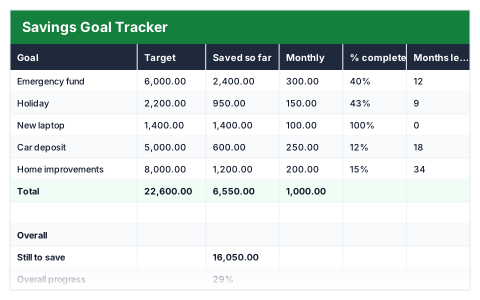
Progress bars per goal, with months remaining worked out from your monthly contribution.
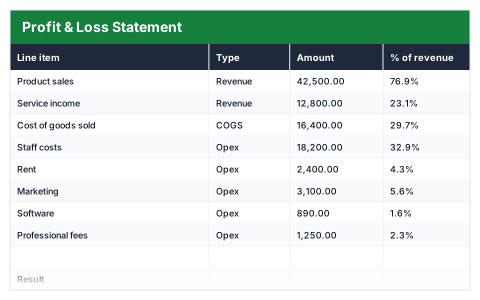
Gross and net margin calculated from your own line items, each shown against revenue.
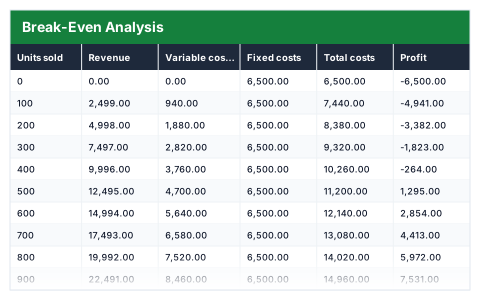
Break-even units and revenue move the moment you change price or costs.
Unpaid invoices bucketed into current, 30, 60 and 90+ days, with the value at risk in each.
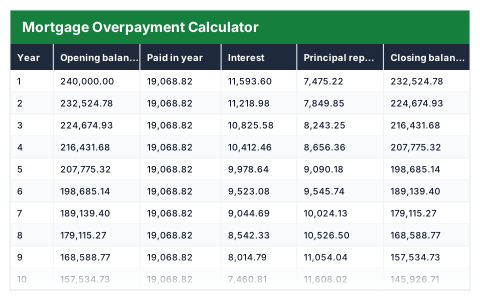
What an extra amount each month actually buys you — the interest saved and the years knocked off.
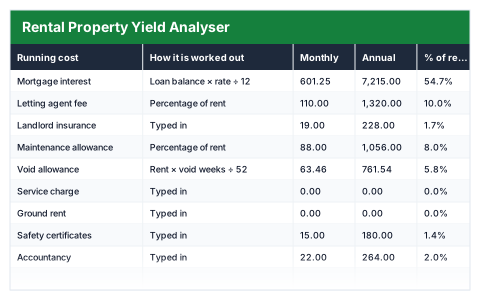
Gross and net yield, cash-on-cash return and the occupancy you need just to break even.
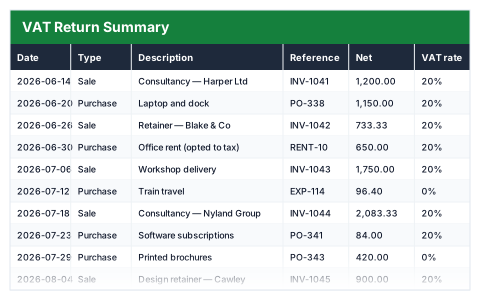
A quarter of sales and purchases logged once, adding straight up into the figures a VAT return asks for.
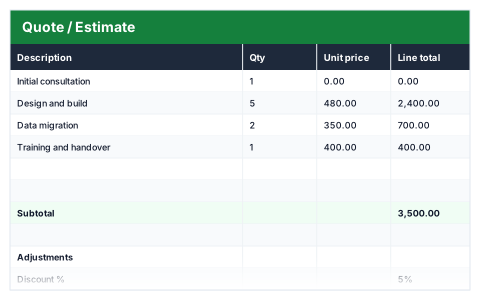
Line totals, an optional discount, tax and a valid-until date that sets itself.
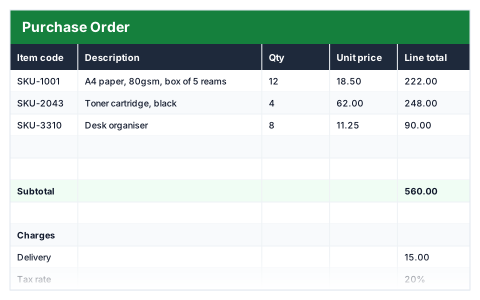
Supplier details, line items, delivery and tax — totalled and ready to send.
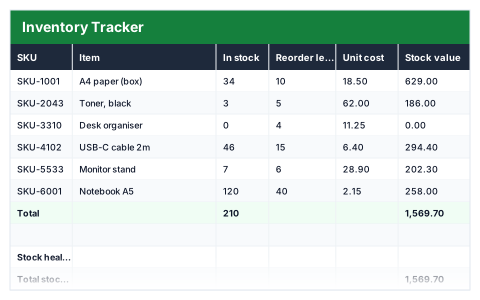
Flags "Reorder" and "Out of stock" against your own levels, with total stock value.
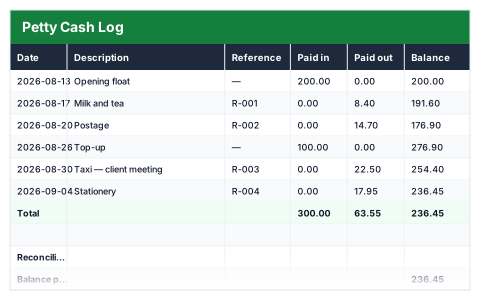
Running balance down every row, so the last figure is what should be in the tin.
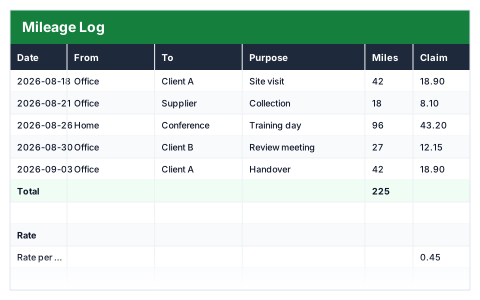
Set your rate once and every journey plus the claim total follows it.
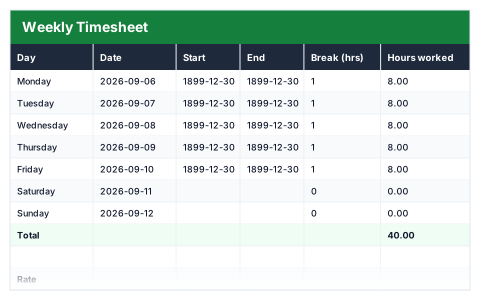
Hours from start and end times, minus breaks, costed at your rate.
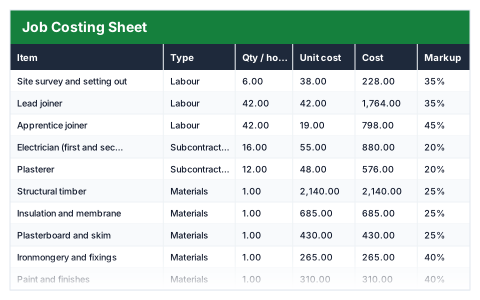
Labour, materials and subcontractors priced per line, with the margin on the job worked out as you go.
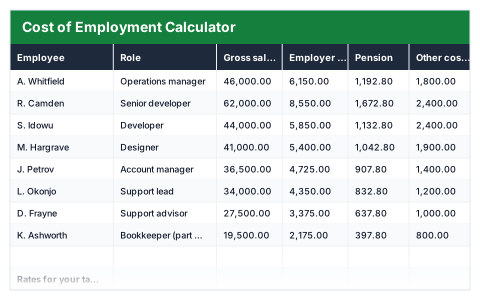
What a salary really costs once employer NI, pension and everything else is added on top.
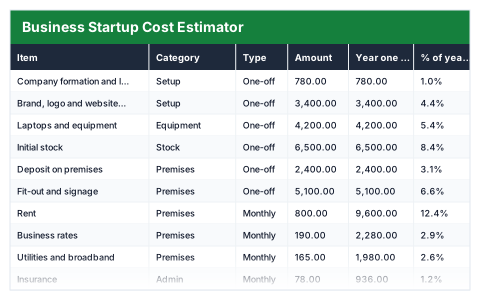
One-off spend and monthly running costs separated out, then turned into how long your funding lasts.
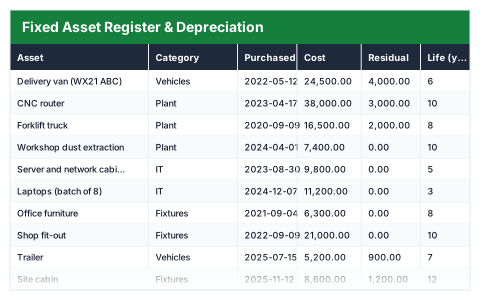
Every asset with its straight-line depreciation, accumulated charge and current book value.
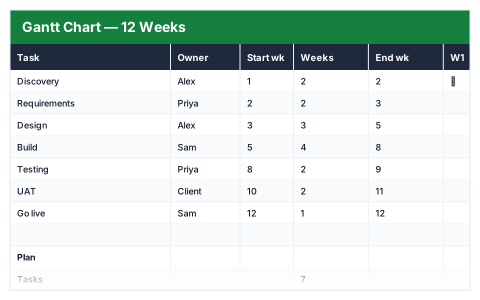
12-week bars that draw themselves from a start week and a duration.
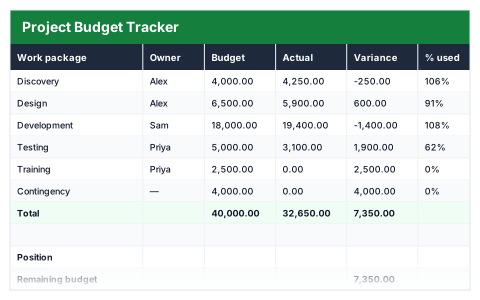
Variance per work package with an over-budget flag that colours itself.
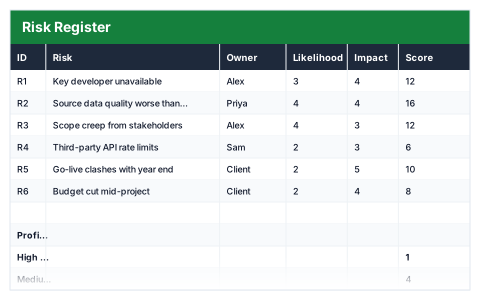
Likelihood × impact scoring with a rating band that sets itself.
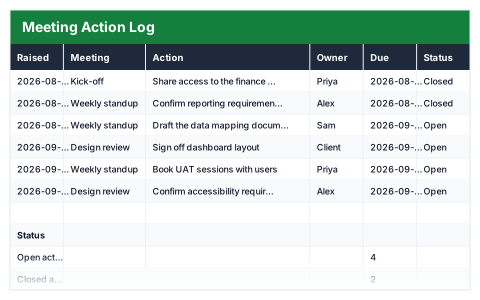
One row per action, with overdue flagged against today automatically.
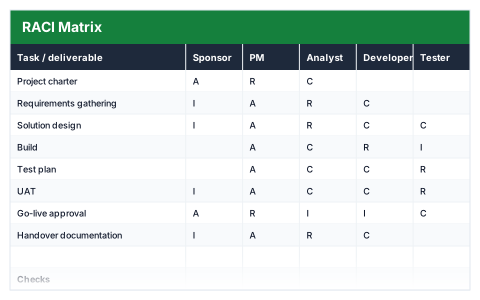
Who is Responsible, Accountable, Consulted and Informed — with a check that every task has exactly one A.
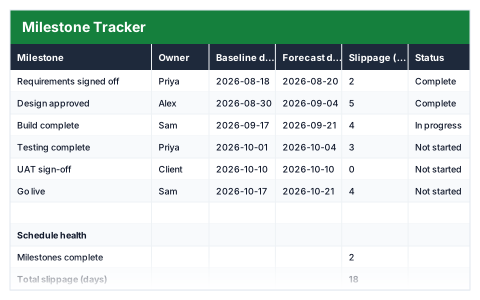
Baseline against forecast, showing slippage in days per milestone.
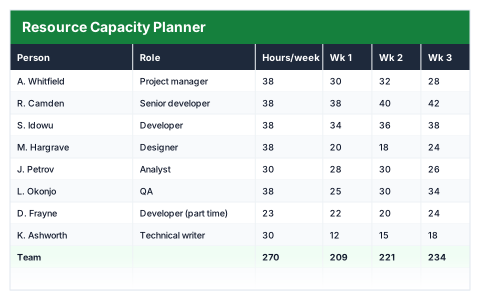
Hours booked against each person week by week, with anyone over their capacity flagged before it hurts.
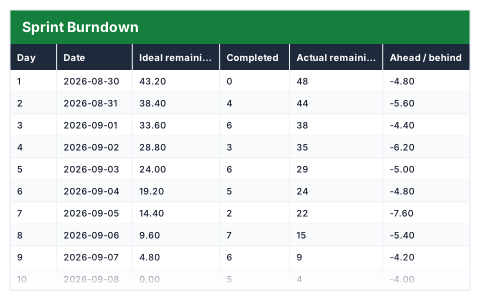
Ideal against actual points remaining each day, with the velocity you would need to finish on time.
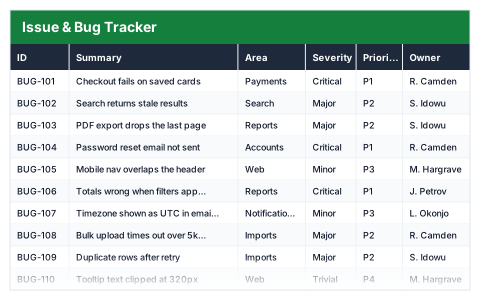
Issues scored by severity and priority, aged against today, with the open queue counted for you.
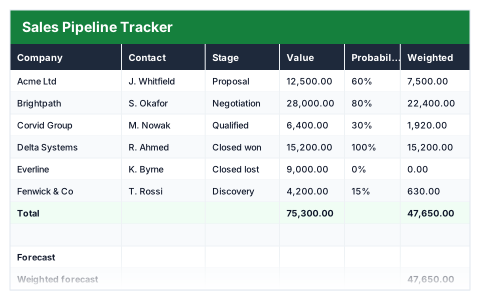
Weighted forecast, win rate and open deal value — the realistic number, not the wish list.
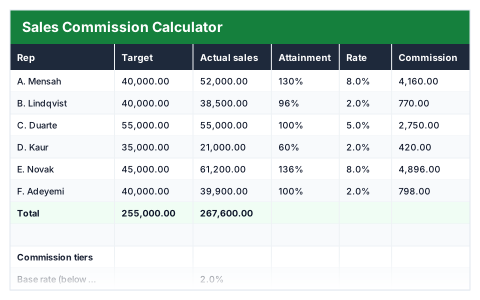
Tiered rates that step up with attainment — change the tiers and every rep recalculates.
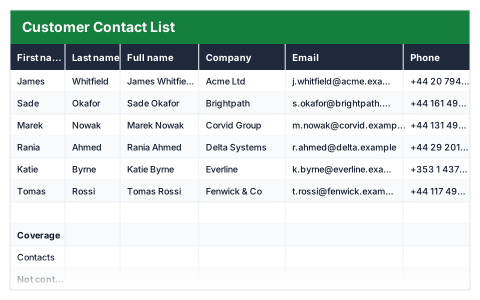
Full names build themselves, with days since last contact so nobody goes cold.
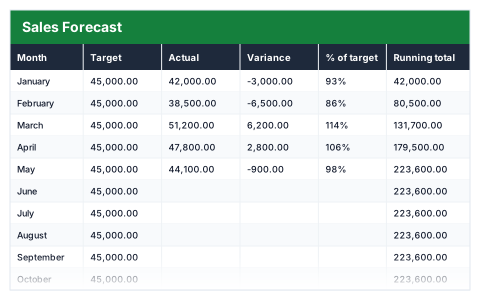
Monthly target against actual, with a running variance and a year-end projection.
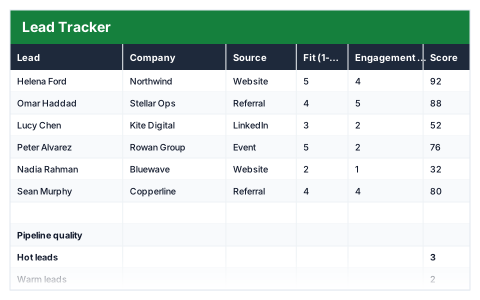
Scores every lead out of 100 from fit and engagement, and tells you which to call first.
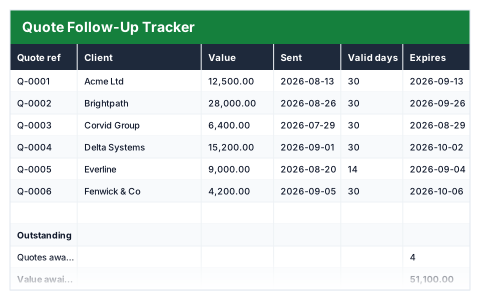
Stops quotes going quiet — flags what is due for chasing and what has expired.
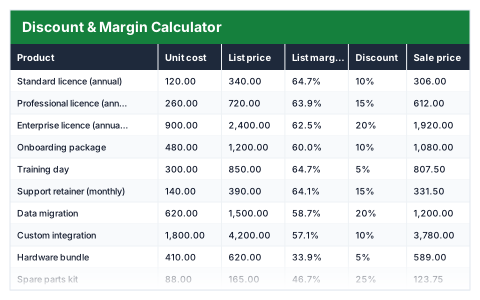
What a discount does to your margin, and how much extra volume you would have to sell to stand still.
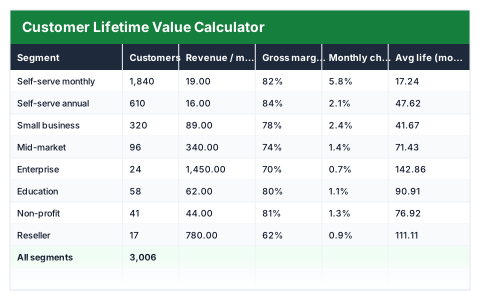
Lifetime value per segment from churn and margin, set against what each one costs to acquire.
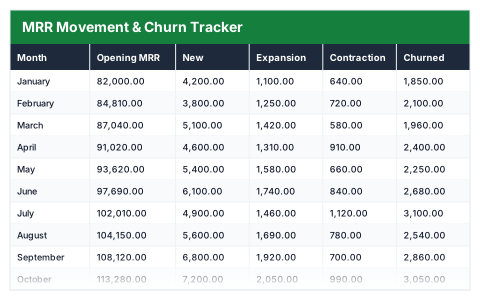
New, expansion, contraction and churn each month, adding up to net revenue retention you can defend.
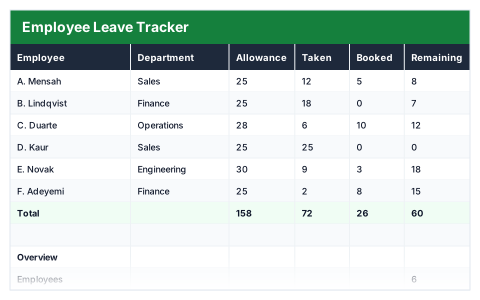
Allowance minus taken and booked, per person, with a flag when someone has none left.
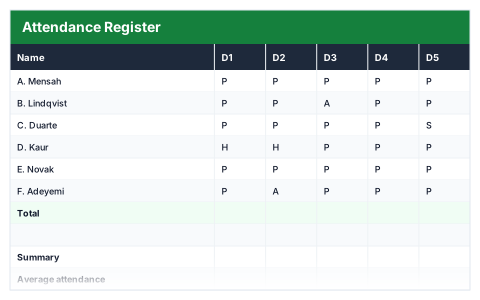
Ten-day grid that tallies present, absent, holiday and sick per person.
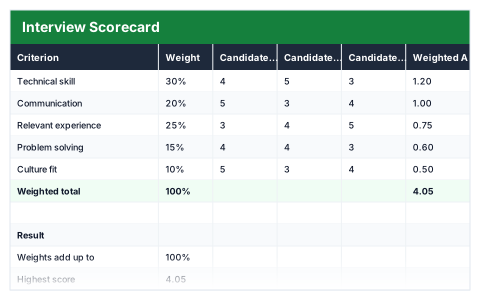
Weighted scoring across candidates that names the strongest on the numbers.
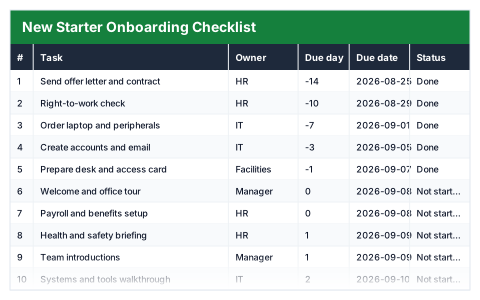
Every task a new starter needs, by owner and due day, with completion tracked.
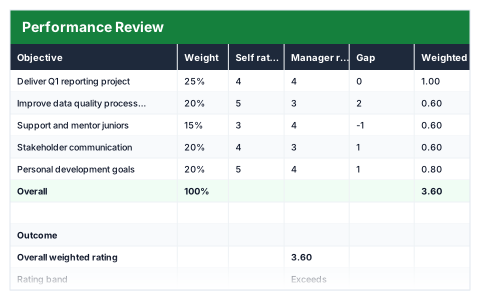
Weighted objectives with self and manager ratings side by side, and the gap between them.
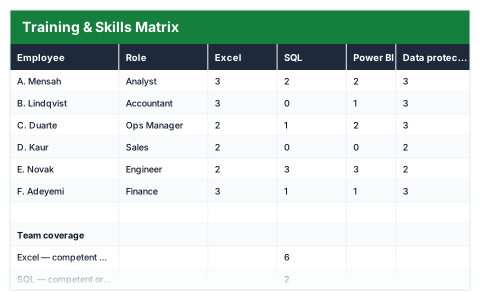
Who is trained on what, where the gaps are, and which certificates expire soon.
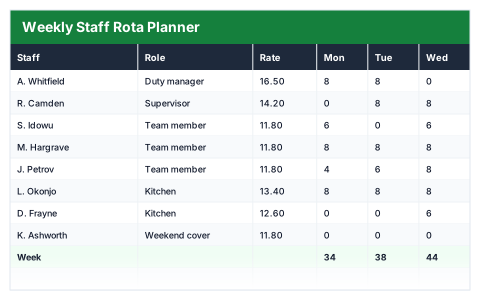
A week of shifts with hours and wage cost per person, and the day totals that show where you are thin.
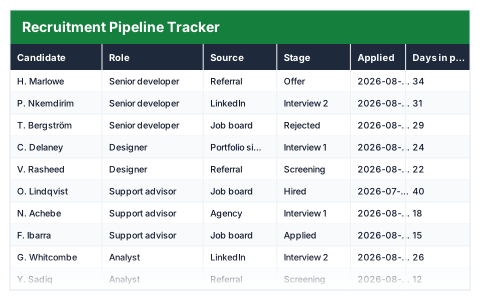
Candidates by stage and source, aged against today, with the funnel conversion worked out.
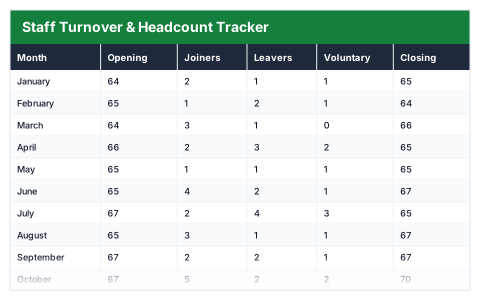
Joiners and leavers month by month, with the turnover rate calculated on average headcount, properly.
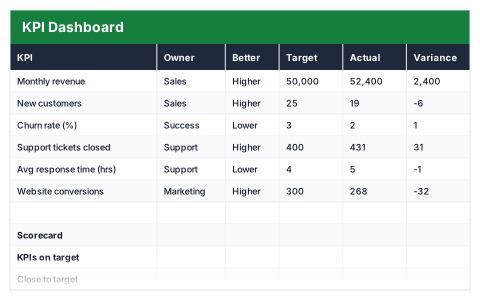
Target against actual with on/off-target status, direction-aware so lower can be better.
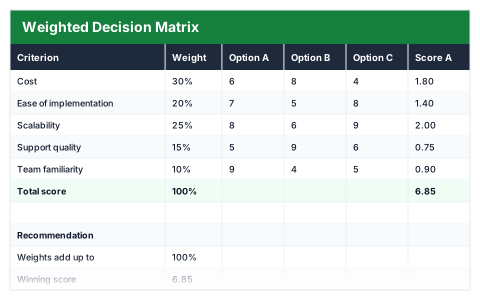
Scores options against weighted criteria so the choice is calculated, not argued.
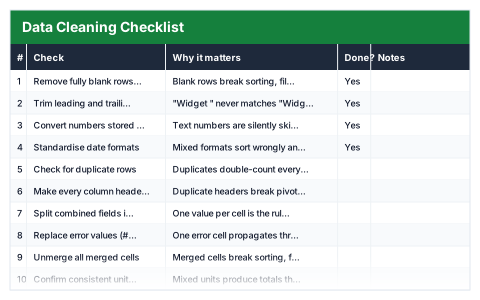
Twelve checks to run before any analysis, with progress tracked as you work.
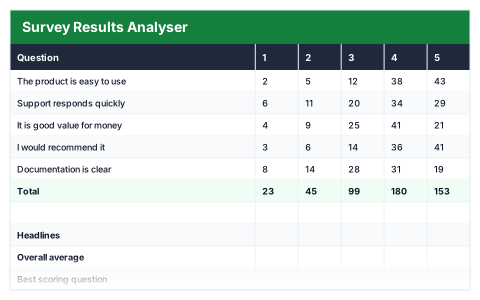
Turns 1–5 responses into averages, top-box scores and a distribution per question.
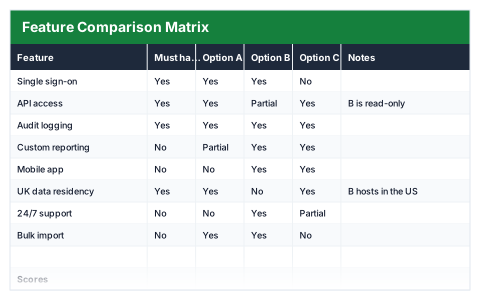
Compare vendors or products feature by feature, with a must-have check that fails loudly.
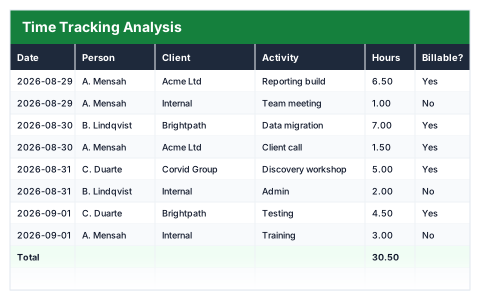
Where the hours actually went, split billable against non-billable by client and activity.
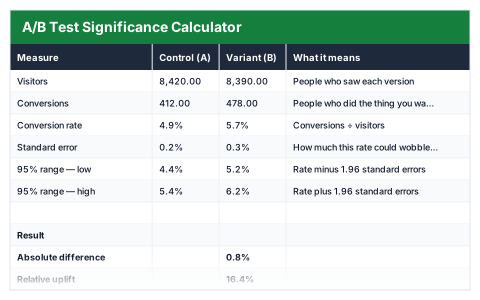
Whether a conversion difference is real or noise — z-score, p-value and a plain verdict.
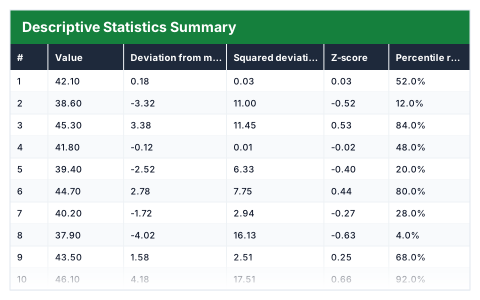
Mean, median, quartiles, spread and z-scores for a column of numbers, with outliers flagged.
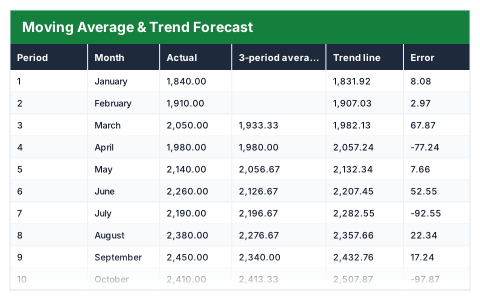
A three-month moving average, a fitted trend line and the next three periods, with the error measured.
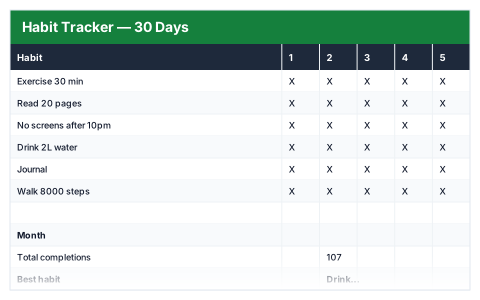
30-day grid with completion rate and a data bar per habit.
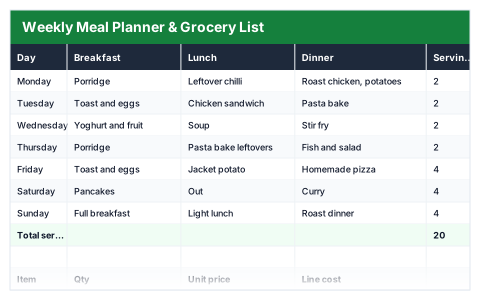
A week of meals plus a costed shopping list that totals itself.
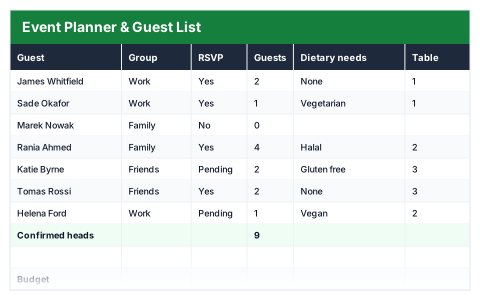
RSVP counts, dietary needs and a cost per head that updates as replies come in.
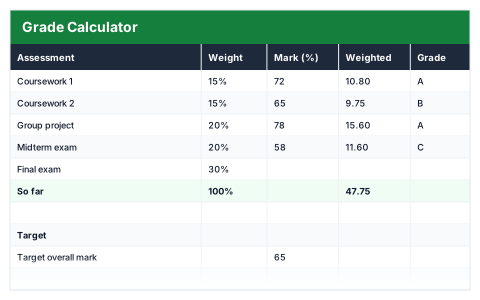
Weighted average and letter grade, plus what you still need on remaining assessments.
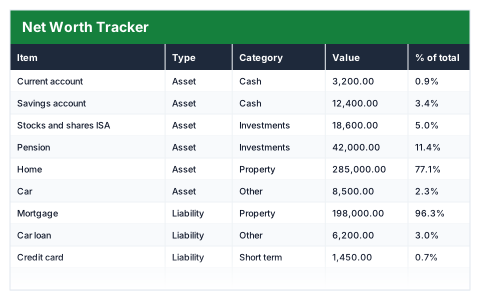
Assets minus liabilities, with each line shown as a share of the total.
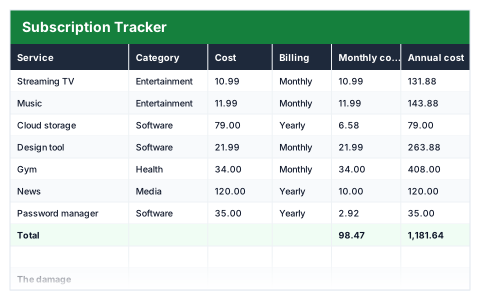
Every recurring payment normalised to a monthly and annual cost, with renewal dates.
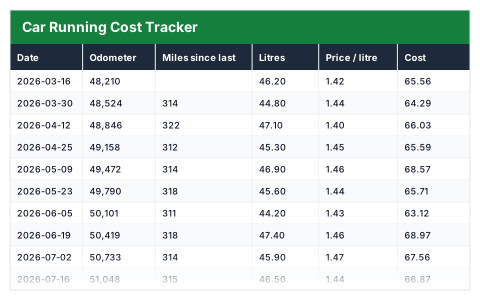
Fuel logged by odometer reading, giving real MPG, a true cost per mile and what the car costs a year.
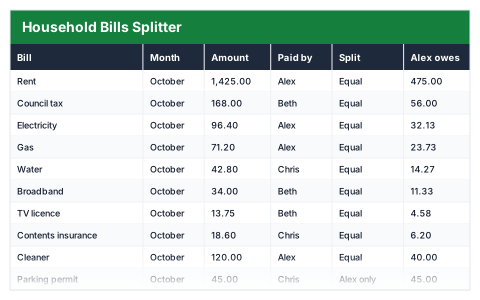
Shared bills split however you agreed, then netted off against who actually paid, so nobody argues.
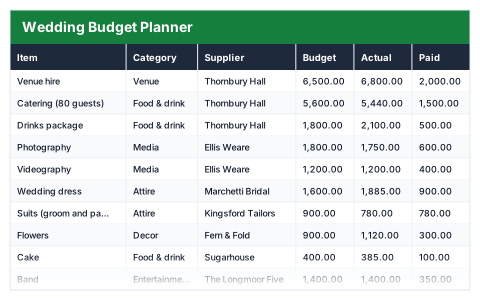
Budget against actual by supplier, with deposits paid, balances still due and what is left to allocate.
The complete pack
Cash flow forecasting, loan amortisation, Gantt charts, sales pipeline, timesheets, inventory, KPI dashboards and the rest — built the same way as the free ones. One payment, commercial use, no subscription.
Upload it to our free auditor and it will flag broken references, inconsistent formulas and hardcoded values — with the cell address for each one.
Each file opens with a few rows of sample data. That is deliberate — it shows you what belongs in each column and proves the formulas work before you touch anything. Replace the samples with your own rows and everything downstream updates.
When you add rows below the last sample row, check that the total formulas still cover them. In the budget tracker, for example, the total reads =SUM(C5:C12). Adding a row at row 13 leaves it outside that range. Insert new rows in the middle of the block instead and the range grows on its own — this is the single most common reason a template quietly stops adding up, and it is worth knowing about before it bites you. Our guide on why Excel totals are wrong goes through the rest.
Shaded, boxed cells are inputs — a tax rate, an hourly rate, a reorder level — and the table reads from them. Anything else holding a formula will overwrite itself if you type over it.
The task tracker uses TODAY(), so the days-left column changes every day you open it. That is what you want for a live project, but it means the file is never identical twice — do not be surprised when yesterday's numbers have moved.
Yes, for the templates — free ones included. It takes an email address and a password, and the file is then yours to download again whenever you like, always at the current version. It is also how we can tell you when a template is updated or a formula is fixed. The 25 spreadsheet tools are the other half of this site and they need nothing at all: no account, no email, and your file never leaves your browser.
Yes. Every function used — SUM, SUMIF, COUNTIF, COUNTIFS, IF, PMT, TODAY, AVERAGE and TEXT among them — exists in Google Sheets, LibreOffice Calc and Excel 2013 onwards. Upload the file to Google Drive and open it with Sheets, or open it directly in Calc.
Already built in and live. Type over the sample rows and the totals, differences and summaries recalculate. Nothing is pasted-in static numbers — the formula count on each card is the real number of live formulas in that file.
The first few rows of the actual file, drawn from the workbook itself rather than mocked up. If a preview shows a column, that column is in the file you download.
Yes. Use them at work, edit them, rebrand them, send the invoice one to your clients. We wrote these from scratch, so there is no licence to worry about and no attribution required.
Some spreadsheet apps open with calculation set to manual, which shows the stored value rather than recalculating. Press F9, or in Excel go to Formulas → Calculation Options → Automatic. Our guide on formulas not calculating covers every other cause.